
Start with the route edge
Use the required path, shoreline, ridge, or major boundary to orient the comparison before looking at optional markers.
Scroll to zoom. Drag the map to move. Select a marker for the item name and icon.
 Loading live mapFetching today's terrain and markers…
BIOME ROUTE GUIDE
Biome switching is useful when the same objective looks different across the route. Compare the active terrain, keep one layer visible, and use the current view to understand where a marker sits relative to the climb.
TERRAIN FIRST
A biome page should help you recognize the current environment, not make you memorize a static list. Use the selector to compare what changes from one level to the next and what remains a reliable landmark.
The map selector moves through Shore, Tropics, Alpine, Caldera, and The Kiln in the current data set. Each view gives a different amount of visual context. Open the level that matches the decision in front of the group, then keep the same marker layer active while you compare. This makes it easier to see whether a reward is close to the route or only appears convenient because the wrong level is open.
Biome comparison becomes more useful when it stays tied to an action. Are you checking where the party enters the next level? Are you comparing a Tomb approach? Are you looking for a capybara after a route change? Name the question, switch levels, and stop when the image answers it. Endless browsing through maps adds visual familiarity without producing a plan.
Keep the same visual anchor as you move through the selector. A coastline, dark rock shelf, tall structure, or sharp color boundary gives the group something to carry from one image to the next. The anchor does not need to be a named landmark. It only needs to be large enough to recognize and close enough to the intended route to support a useful callout.
Use comparison to remove uncertainty, not to collect screenshots. If two levels share a similar color or outline, the active biome label and update state matter more than visual memory. Confirm the level before selecting a marker, then return to the level where the route decision actually occurs. This keeps the page useful for a player who arrives with a question and leaves with one clear next move.
A biome comparison also helps when the party is preparing for a transition. Check the next level while the current route is still safe, identify the first large landmark, and decide which category will matter once the group arrives. That preparation reduces the urge to stop in the middle of a climb and search from scratch. Keep the comparison brief, then let the active map return to its main job: guiding movement.
COMPARE WITH PURPOSE
Keep the map open while moving through the levels so the same filter and visual language carry into the next decision.
Use the required path, shoreline, ridge, or major boundary to orient the comparison before looking at optional markers.
Leave one layer visible while switching biomes. A changing layer set makes terrain differences harder to read.
Once the target level is clear, stop comparing and zoom into the approach. The goal is a route decision, not a complete tour.
LEVEL NOTES
The following reading cues help the group build a route reference without treating any one screenshot as a guarantee of access.
Use the broad edge of the level and visible structures to understand where the required climb begins. Optional markers are easier to judge after that boundary is clear.
Dense visual detail can make a short side path look larger than it is. Hide unrelated categories and compare the target with the next mandatory landmark.
Later terrain can punish a vague direction. Zoom into a marker, identify the nearby shape, and decide how the group returns to the route before descending.
TOP VIEW / SIDE VIEW
Different angles carry different information. Switching views works when the party knows what it is trying to see.
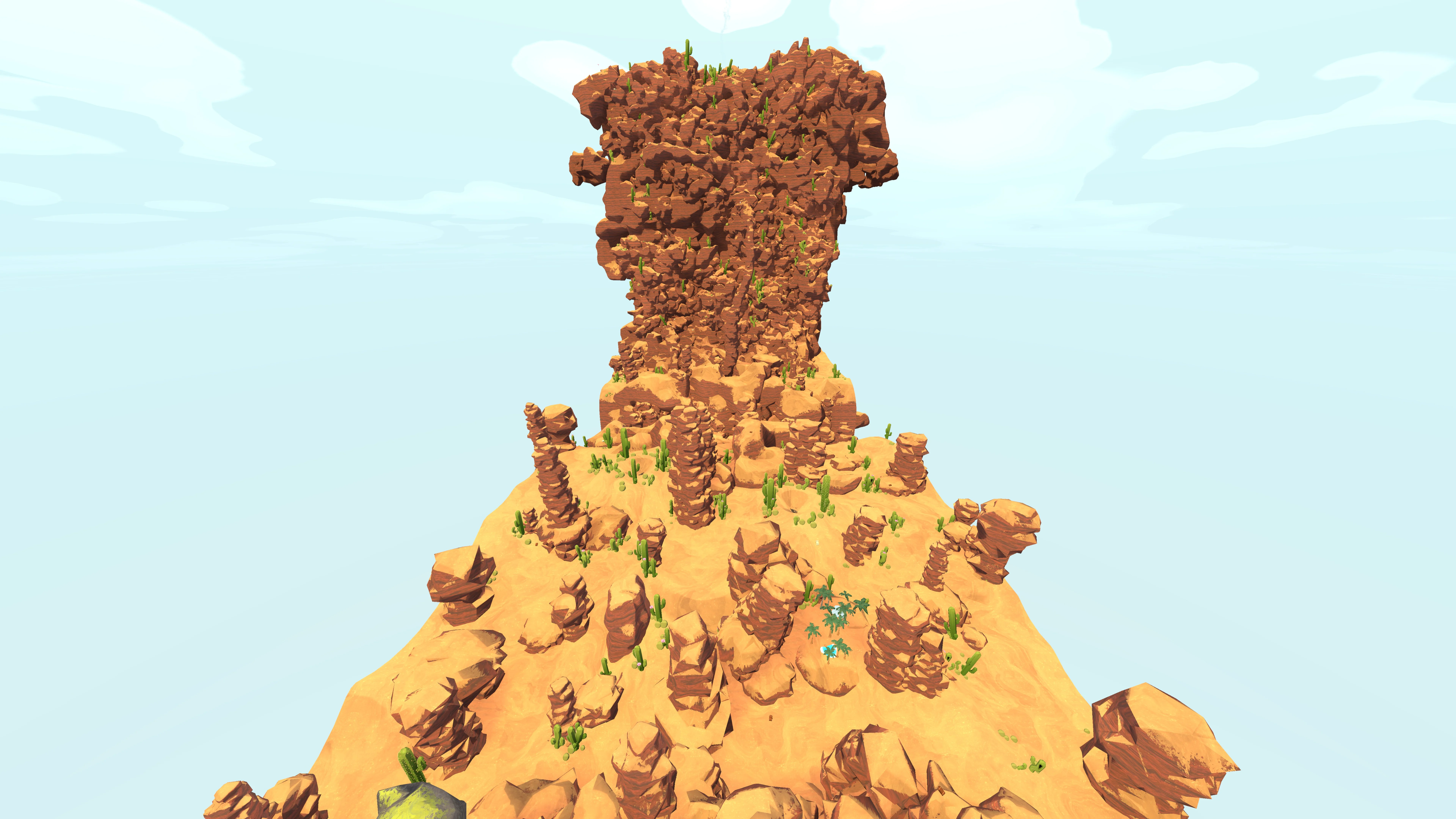
Top view helps compare lateral distance and route shape across a biome.
Top view is the efficient starting point for most route decisions. It shows how far a marker sits from the required line and whether the detour bends away from the summit. Side view can add depth to early levels when a ridge or slope makes the top-down image ambiguous. Use it to confirm a contour, then return to the view that best supports movement.
The map angle is an aid to recognition. It does not replace the game camera, stamina planning, or hazard awareness. A correct route call combines the map’s broad shape with what the group can see while climbing.
MARKERS ACROSS LEVELS
Switching levels with every layer enabled creates a noisy visual comparison. Stable filters make the difference between biomes easier to see.
For a Tomb route, hide Animals, Amulets, Belltowers, and Luggage before moving through the selector. For a capybara search, keep Animals visible and use the same terrain landmark in each level. For a collection run, open the Luggage subtype filter and compare only the item the group actually wants. The active filter stays available while you move between biomes, so the map can behave like a route desk instead of a set of disconnected screenshots.
When a marker count changes, treat that as a prompt to inspect the current level and data state. A count of zero may be perfectly valid for the selected biome. It may also signal that a category is hidden, a side view is unavailable, or the snapshot does not match the rotation you are playing.
The selector also helps with route continuity. A player can check the next biome before the group reaches the transition, identify a large feature near the entry, and avoid opening a separate guide during the climb. Keep the map state simple while doing this: one level, one objective, one landmark. More detail becomes useful only after the party knows where it is going.
If the same marker appears close to the route in two levels, compare the route edge rather than the icon position. Look for the level where the approach is easier to recognize and the return is easier to explain. This is a practical use of the biome map: it helps the party choose where to spend attention when several possible locations compete for the same run.
RECOGNIZABLE TERRAIN
The strongest route reference survives after the player stops looking at the screen.
Describe a coast edge, rock shelf, tower, bend, or color boundary that the group can recognize without a cursor.
Say whether the objective is ahead, beside, above, or behind the required climb. Direction gives the marker a movement meaning.
Agree on the point where the group returns to the main route if the terrain no longer matches the map.
When a side angle explains the approach, keep that view in mind for the next check. Switch back to the broad route view when movement becomes the priority.
QUICK ANSWERS
Short answers for the decisions that affect today's route, markers, and detours.
The current map selector cycles through Shore, Tropics, Alpine, Caldera, and The Kiln in the supplied community data set.
Keeping the map open preserves the active marker filter while you compare terrain and decide which level matches the route.
Use a side view when a ridge, slope, or elevation change is difficult to interpret from the top-down image.
Markers belong to the active level and view. Check the selected biome, layer state, subtype filter, and update timestamp.
It shows terrain and community marker data. Stamina, hazards, and final access still require an in-game check.